
Kiroku includes a range of settings that let you tailor the experience to how you and your team work.
You can find these by going to 'Settings' > 'Preferences', found on the left-side of your Dashboard
Dental notation system
Choose the notation format that matches your practice: FDI, Palmer, Universal, or Victor Haderup.
Kiroku will use your selected system when displaying and generating tooth references throughout your notes.
When you create your account, we'll pick the notation system that best matches what is used in the country that you practice, but you can change this at any time.
Tooth selector
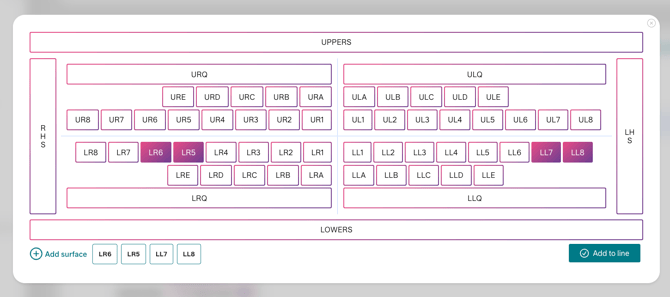
Switch between a Modern or Classic tooth selector interface.
This is the Classic tooth selector:
This is the Modern tooth selector:
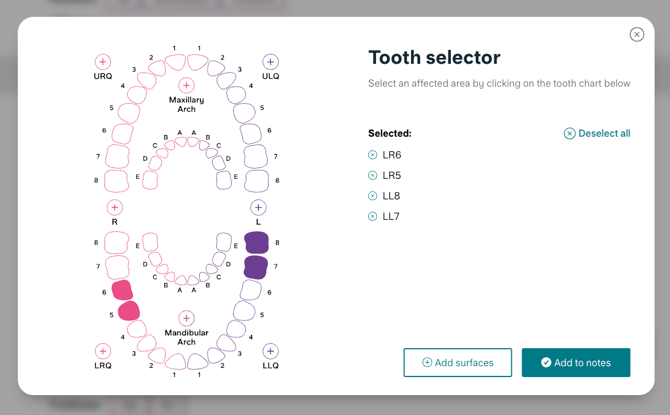
Both options give you the same functionality, so it's simply a matter of whichever layout you find more intuitive.
Note that on small screens, such as in the Chrome extension or on a mobile device, the only option is the Modern tooth selector, due to size limitations.
Editor view
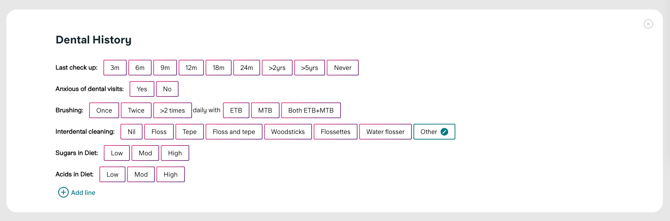
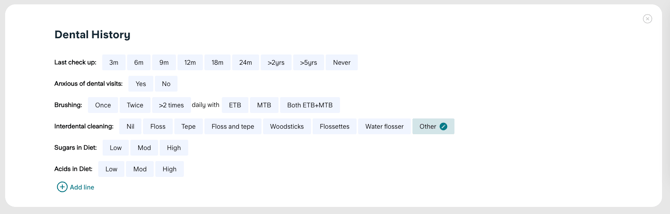
Choose between the Modern (white with pink/purple accents) or Classic (greeny-blue) editor view.
Icons in Template picker
Set whether the template picker shows icons for each template on the dashboard, or whether to hide them (although we think this is a bit less fun)!.
Edits on the fly
When enabled, this allows you to make quick but permanent changes to your underlying note template when it is in use. You'll see a blue line appear as well as a bubble asking if you'd like to update the template.
If you find that the underline is annoying, or you don't want to accidentally make changes to your template, we recommend disabling the Edits on the fly feature.
"Open these notes in Kiroku" signature
When enabled, a signature is added to the end of the notes that you copy out of Kiroku, including a link to open them back in the editor.
Disable it if you'd prefer your copied notes to be clean of any Kiroku references.
Copy notes as plain text only
Enabling this strips any formatting when you copy notes, so only the plain text is copied to your clipboard.
This is particularly helpful if your practice management software, such as R4, doesn't handle formatted text correctly, notes are taking up too much space, or you're seeing layout issues when pasting.
Reply-to email
Add an email address here if you'd like patient replies to a sent Doc to go to a specific address, rather than the default.
The default email address is the email address you use for your Kiroku account, although this is not shown to the patient. If you would rather your Docs went to a different address, like a practice address, this is where you can update this.