
What is Show & Tell?
Explaining a diagnosis or treatment is easier when your patient can see it. Show & Tell puts a library of animated explainer videos into the workflow you already use: write the note, show the video, send the letter.
It helps you:
- Explain clearly. Patients understand their diagnosis and options better, whatever their first language, level of understanding or neurodivergence.
- Support informed consent. Patients who understand their options are better consented and more likely to go ahead with treatment.
- Keep a record. Add a summary of what you showed straight into your notes in one click.
- Follow up. Send the videos to your patient so they can watch them again at home.
How much does it cost?
This feature is free until 31 October 2026. After that, Show & Tell will use credits on the Essential plan. We’ll confirm the details before any charges start.
Opening Show & Tell | Finding a video | Playing a video to your patient
Move between related videos | Adding a summary to your notes
Sending videos to your patient - Links only | Sending videos to your patient in Docs
What does the patient see | FAQ
Opening Show & Tell
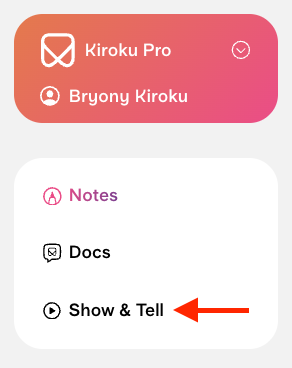
Show & Tell can be opened at any time by clicking the Show & Tell button in your dashboard sidebar.
When in an appointment, there are three ways to open it Show & Tell:
- Click the Show & Tell button (the play icon) in the toolbar on the right of the notes editor.
- Click the Show & Tell button next to a section heading, such as Diagnosis, Discussion, Treatment Options or Treatment Plan.
- Use the keyboard shortcut Ctrl (or ⌘) + Shift + L.
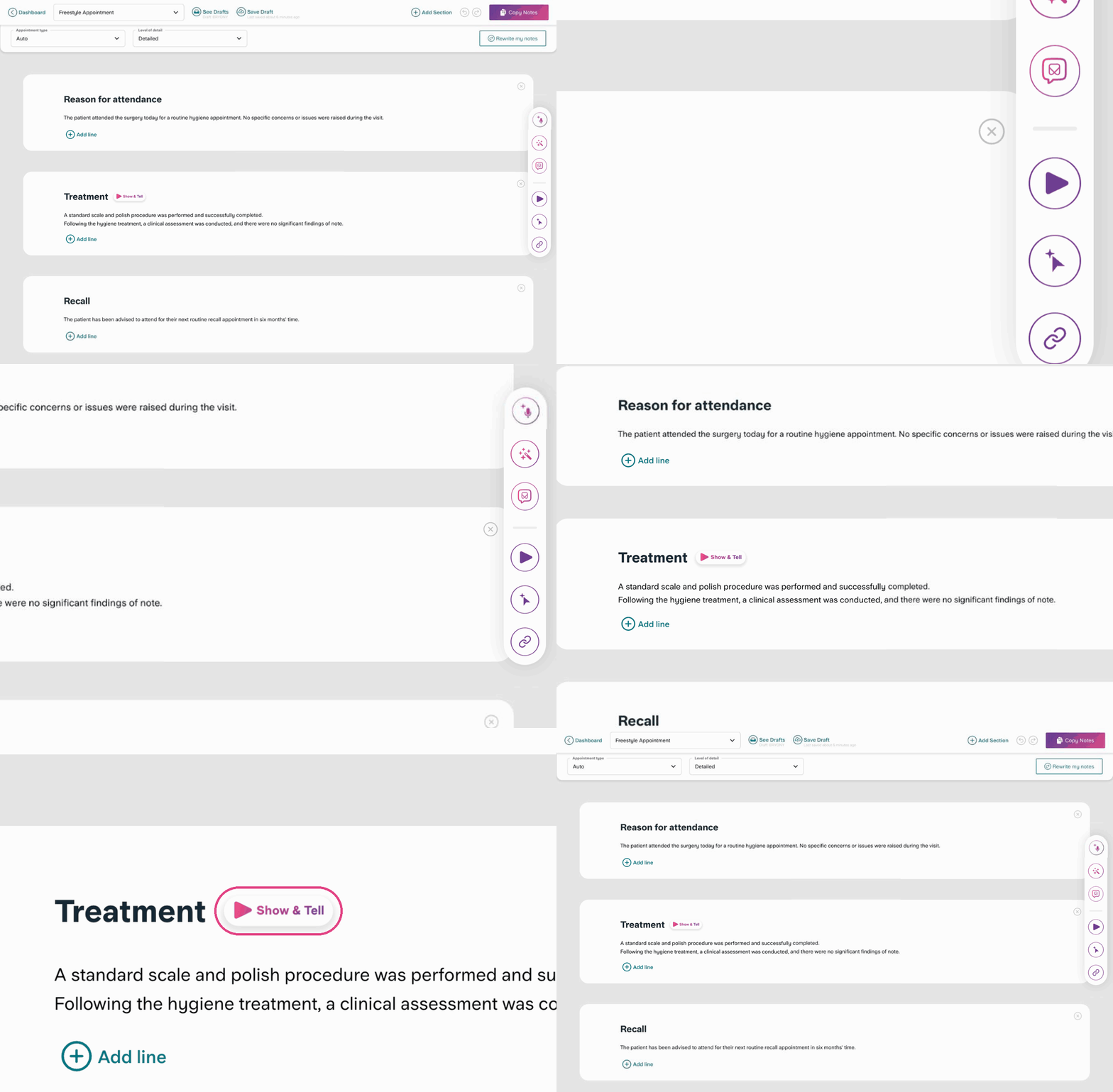
The Show & Tell button is in the right-hand toolbar. The Show & Tell tag also appears next to section headings.
The Show & Tell panel opens on the left of your note.
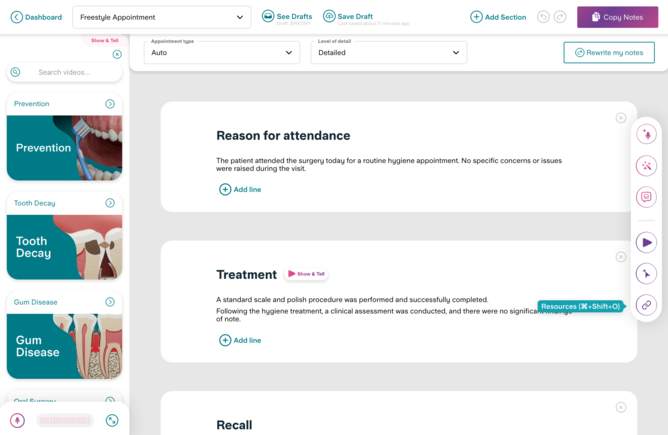
The Show & Tell panel, with search at the top and video collections below.
Finding a video
Browse by collection
Videos are grouped into collections:
- Prevention
- Tooth Decay
- Gum Disease
- Oral Surgery
- Missing Tooth Options
- Tooth Wear
- Cosmetic
- Crooked Teeth
Click a collection to see its videos. Hover over a video to preview it before you play it to your patient.
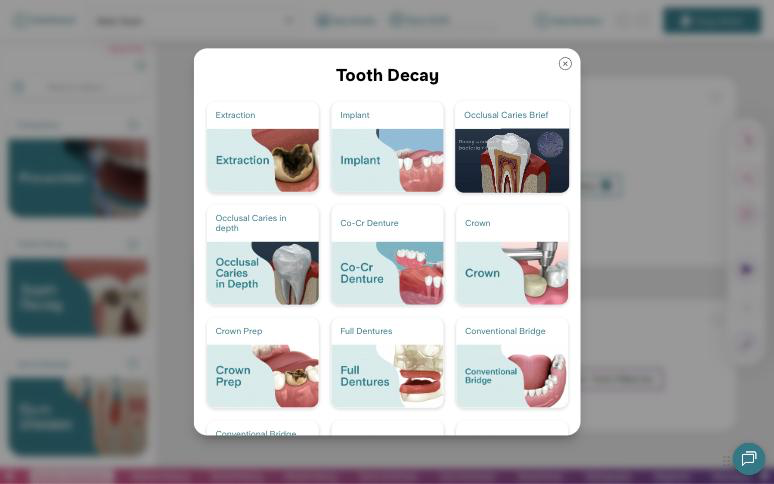
Hover over a video to see a preview.
Favourites and recents
Select the 'Favourites and recents' collection to see your 12 most recently played videos, as well as any you've saved as 'Favourites'.
You can save a video as a favourite by clicking the star in the top right corner when viewing the video.
Search
Type in the Search videos bar at the top of the panel. Search by the name of the treatment or condition, for example, filling, crown, root canal or implant.
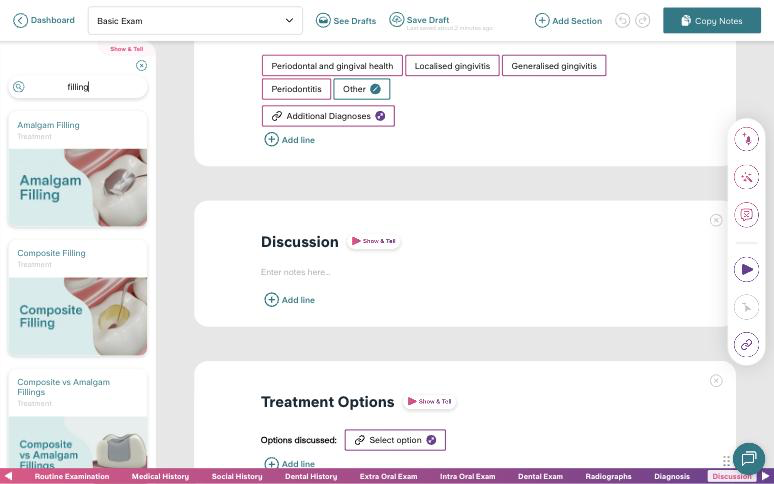
Searching for "filling".
Playing a video to your patient
- Click a video. It opens in a large player over your note.
- Press play.
- Use the controls on the player to:
- change the playback speed (1×, 1.5× or 2×). Kiroku remembers the speed you pick for next time.
- go full screen, so your patient can see it more easily.
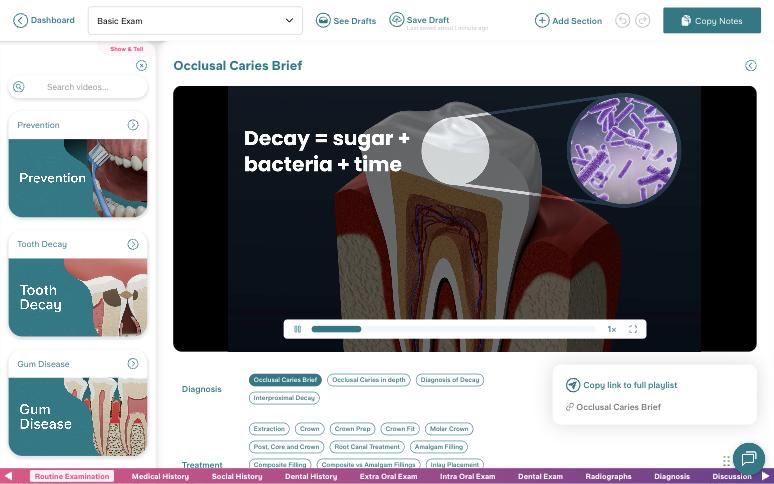
A video playing. Videos you've played appear in the card on the right.
Move between related videos
Under the player, you'll see related videos, grouped into areas such as Diagnosis, Treatment, Consequences and Replacement Options. Click any of them to switch videos. This makes it easy to go from explaining the problem to talking through the treatment options in one conversation.
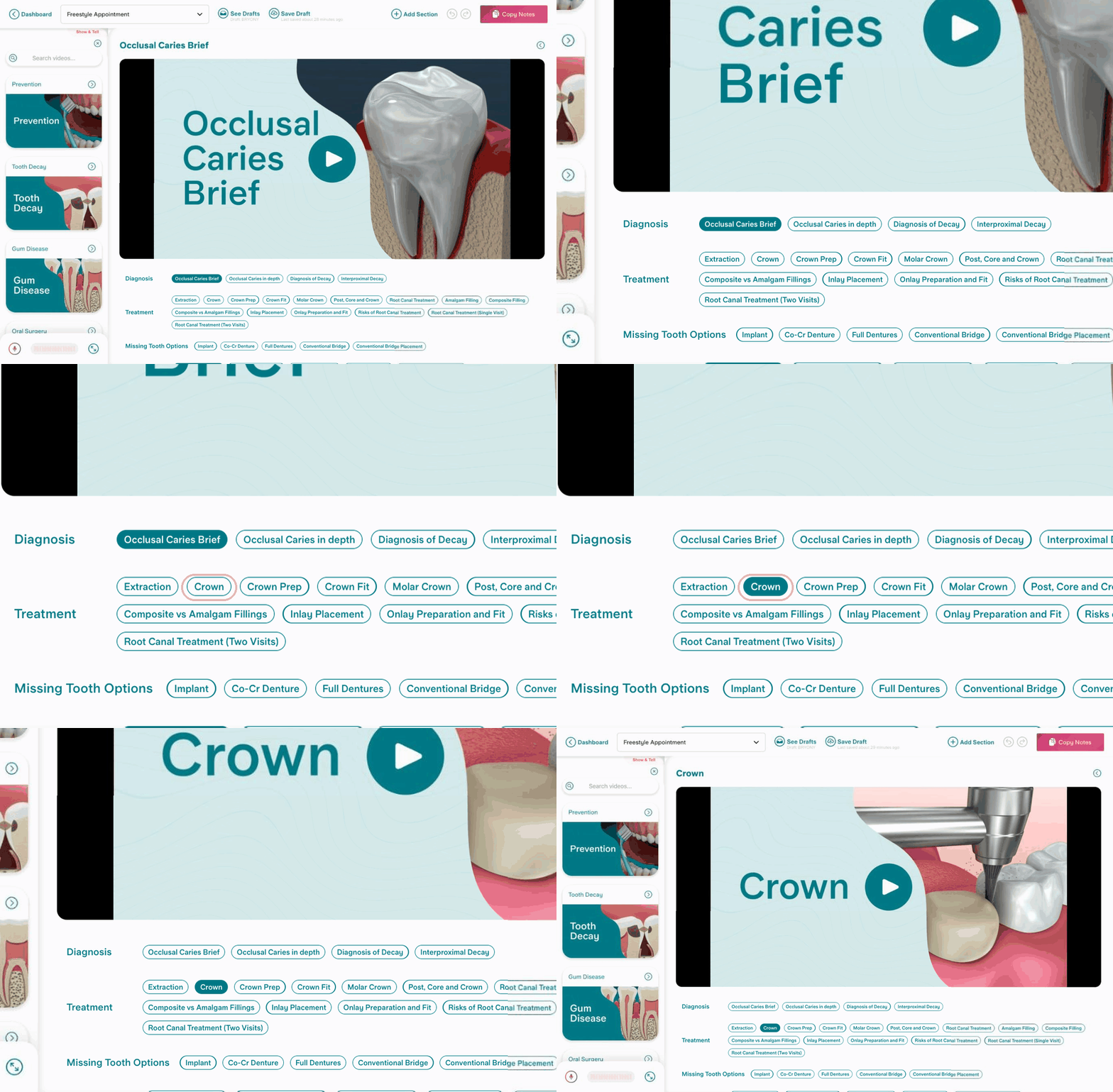
Related videos are grouped under the player.
Adding a summary to your notes
After you've played a video, an Add these notes to Discussion card appears next to the player. It contains a short summary of what the video explains.
- Click Add these notes to Discussion.
- The summary is added to the Discussion section of your note. You can edit it like any other text.
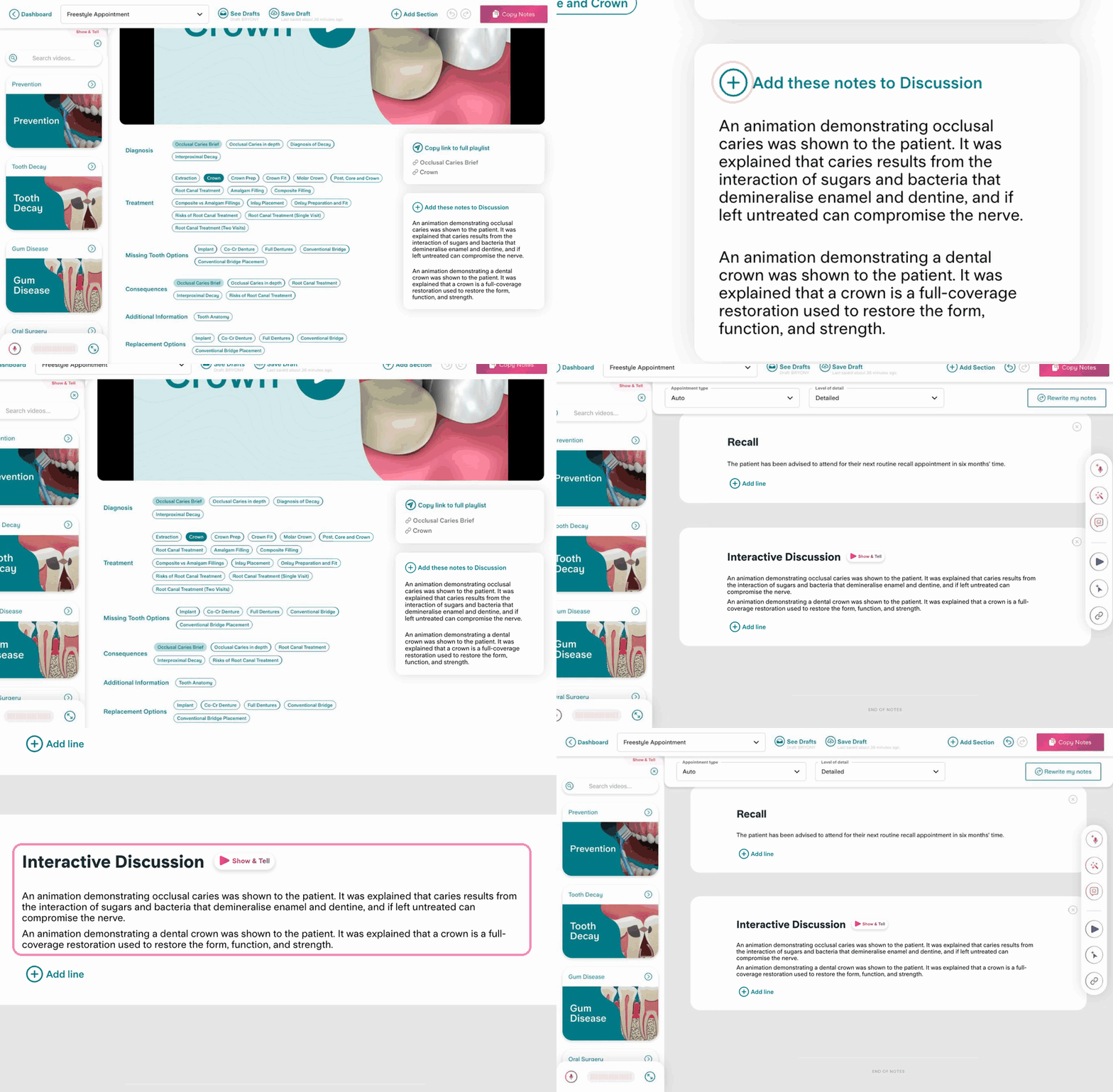
The video summary is added to the Discussion section.
Sending videos to your patient
Every video you play during the appointment is added to a playlist for that note. You can send the playlist to your patient so they can watch the videos again at home.
Copy a link
In the playlist card next to the player, or, from the Docs side panel:
- Click Copy link to full playlist to copy one link to every video you've played.
- Or click a single video to copy a link to just that video.
Paste the link into your own message, email or text to the patient.
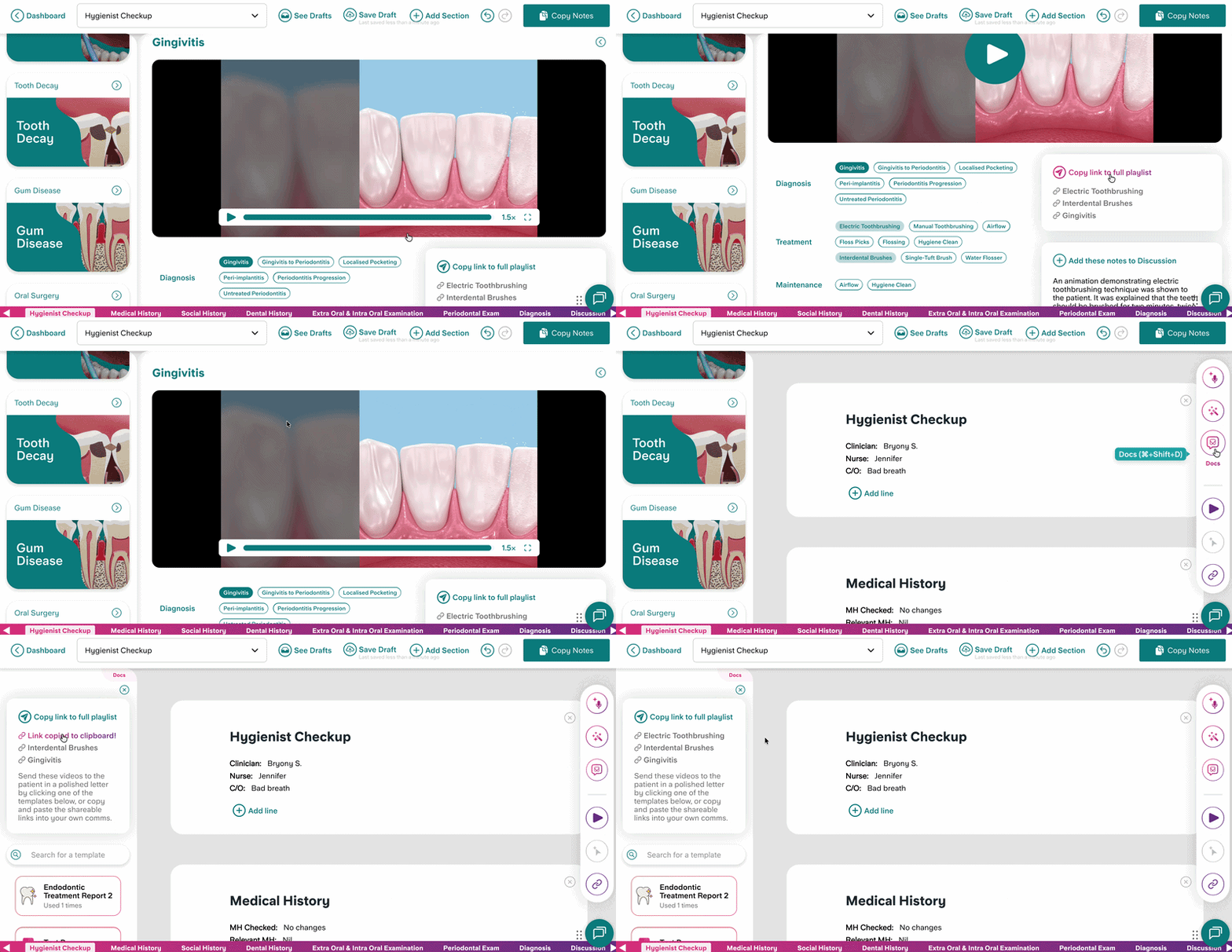
The playlist card.
Add videos to a patient letter in Docs
- Open the Docs panel from the toolbar.
- Choose a letter template to create your letter.
- If you played any videos during your appointment, you'll see a box in the AI Editor asking, 'Would you like me to insert these videos? '. Each video you've played will be listed, and you can uncheck any you don't want to add. Click 'Insert ', and a link to each video will be added to your note.
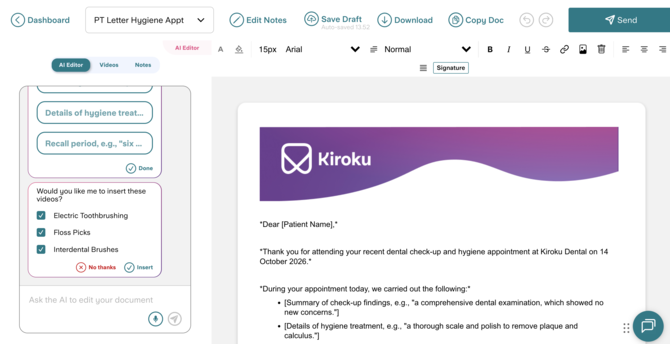
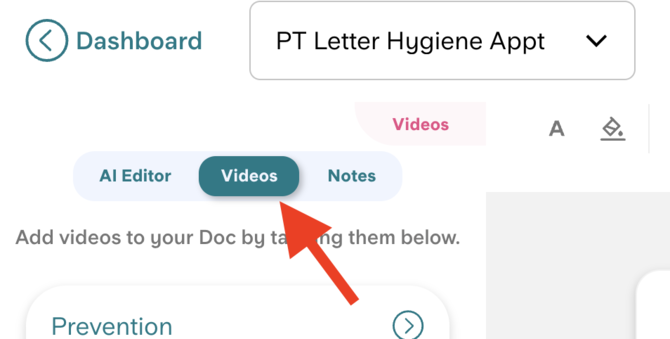
- To add links to videos you've not played in the appointment, open the Videos tab on the left. Here you can browse through all videos and collections.
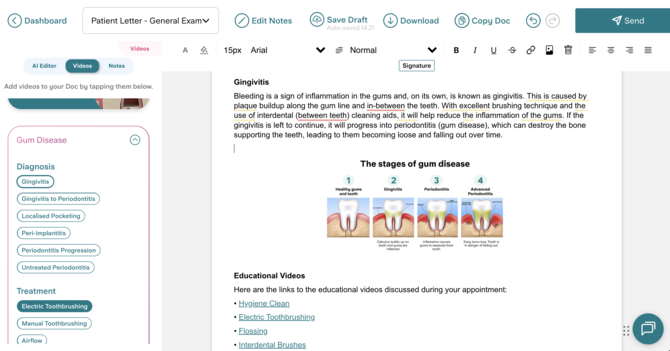
- Click where you want the video to go in the letter, then click the video. It's added as a link, and you'll see a confirmation that it was added to the document.
What does the patient see
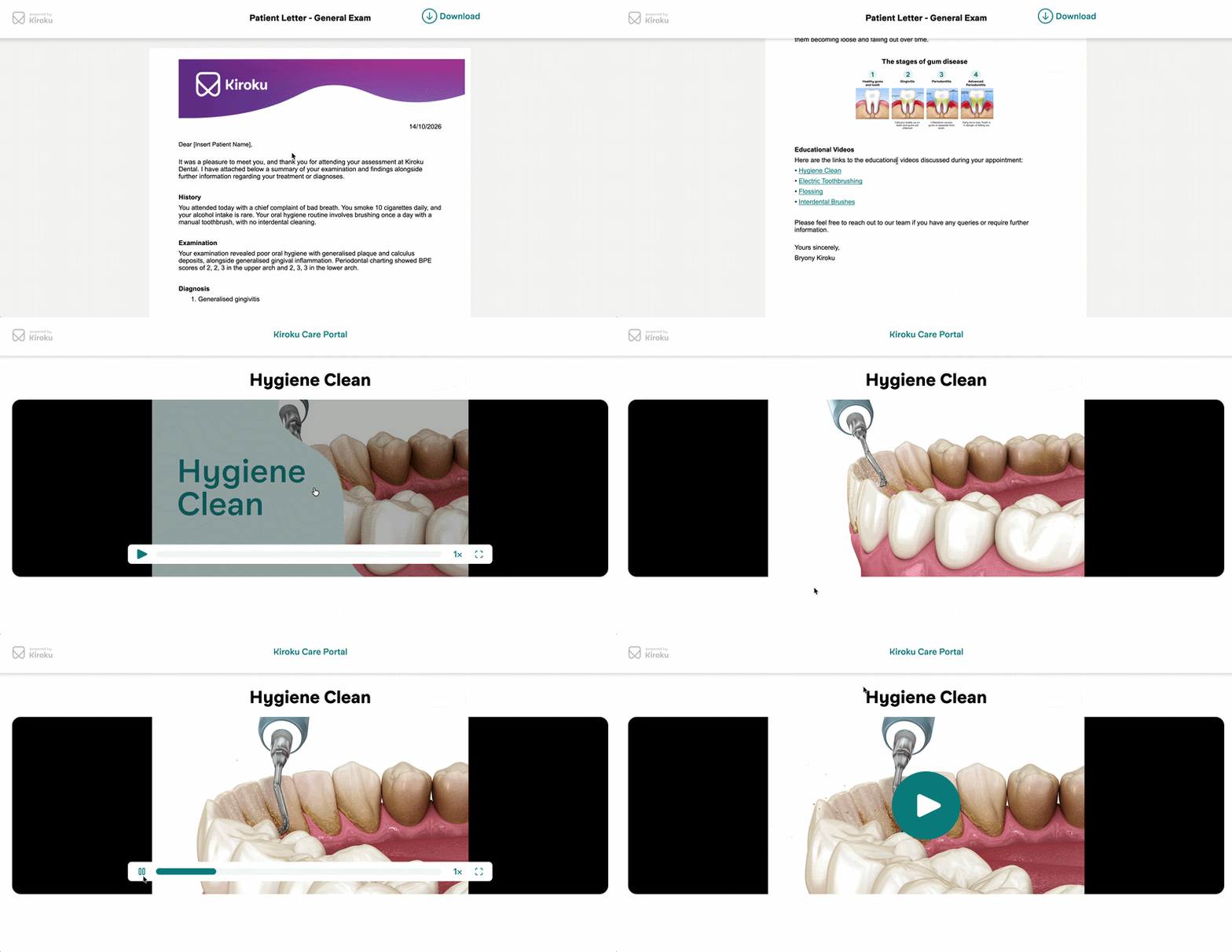
If sent in a Doc, the patient will receive an email with a link to complete a quick verification and access the letter.
Once in the letter, they can click on the link to view the video.
Frequently asked questions
Do I need to finish my note before I can use Show & Tell?
No. You can use Show & Tell at any point in the appointment, including while recording a Freestyle appointment.
Can I suggest a video to be added to your collection?
Absolutely! We're adding new videos all the time. If there's a video you'd like to see, let us know. You can find our contact details at the bottom of this page.
Can I remove a video from the playlist?
No. Videos you've played stay on that appointment's playlist. You don't have to send all of them: you can copy links to individual videos, and choose which videos to add to a letter.
Is a video added to my notes automatically?
No. A summary is only added when you click Add these notes to Discussion, so you stay in control of what goes in your notes