
Lost a note? Dont panic! At the top of both the Notes and Docs dashboards, you'll see tabs labelled 'Drafts', 'Auto-saved', and 'Completed'. Within these tabs you'll be able to find any Notes or Docs you've created.
Read on for an explanation of what you'll find in each.
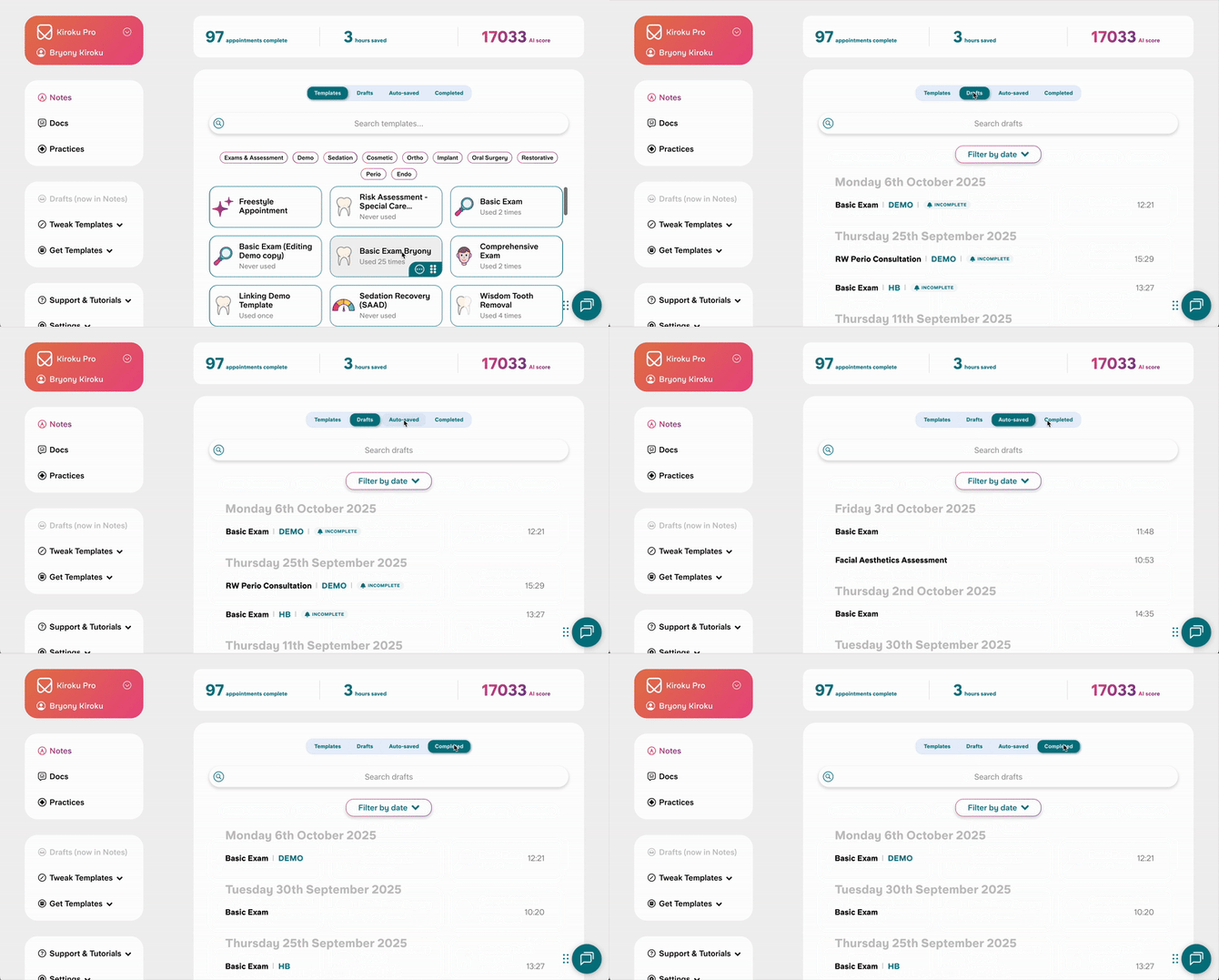

Drafts
'Drafts' shows any Notes or Docs that you have manually saved. See how to save drafts here.
Your last 10 drafts will show automatically on the dashboard. Scroll to the bottom and select 'Load more' to see more. You can also filter by date or search by name. Searching by name only searches the loaded drafts, you may need to load more to find what you're looking for.
Autosaved
'Autosaved' shows any:
Notes that you have not manually saved, and have not copied.
Docs that you have not manually saved, and have not sent, copied or downloaded.
Your last 10 autosaved drafts will show automatically on the dashboard. Scroll to the bottom and select 'Load more' to see more. You can also filter by date or search by template name. Searching by name only searches the loaded drafts, you may need to load more to find what you're looking for.
Completed
'Completed' shows any Notes that have been copied, and Docs that have been sent, copied or downloaded.
Your last 10 autosaved drafts will show automatically on the dashboard. Scroll to the bottom and select 'Load more' to see more. You can also filter by date or search by template name. Searching by name only searches the loaded drafts, you may need to load more to find what you're looking for.
If you still can't find your Note/Doc
If you've looked in the Drafts, Autosaved, and Completed tabs and still can't the Note or Doc you're looking for, please reach out to the team for support locating this. We are always happy to help. You can contact us via Online chat, email, or WhatsApp.