
What Is 'Useful Links'
The Useful Links panel lets you save and quickly access the websites and guidance you refer to most during appointments - all in one place. We’ve preloaded common resources like SDCEP, NICE and IADT guidance, so they’re always a click away when you need to check something mid-consult. You can also add your own links, making it easier to stay consistent, up to date and focused without breaking your workflow.
Where can I find this?
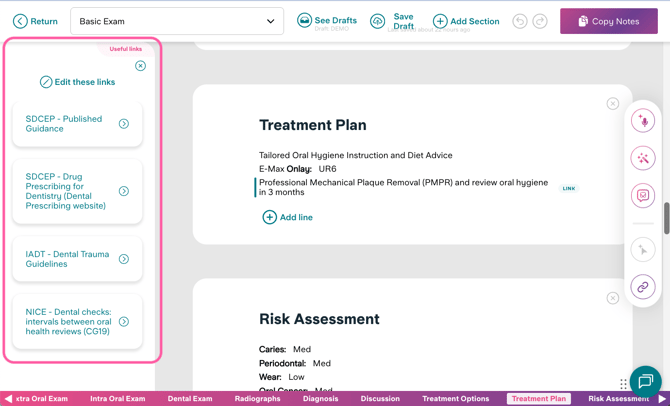
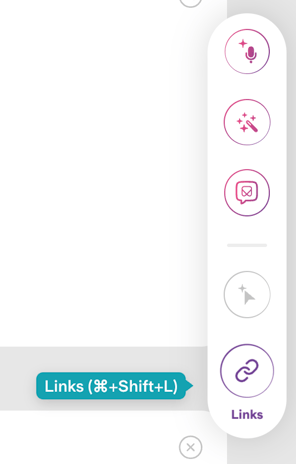
You can open your 'useful links' from the right-hand-side button panel when completing your notes. The button has a link/chain icon. The links panel will then appear on the left side of your screen.
How can I change/add links?
To add, remove or edit links, press the 'Edit these links' button found at the top of the links panel.
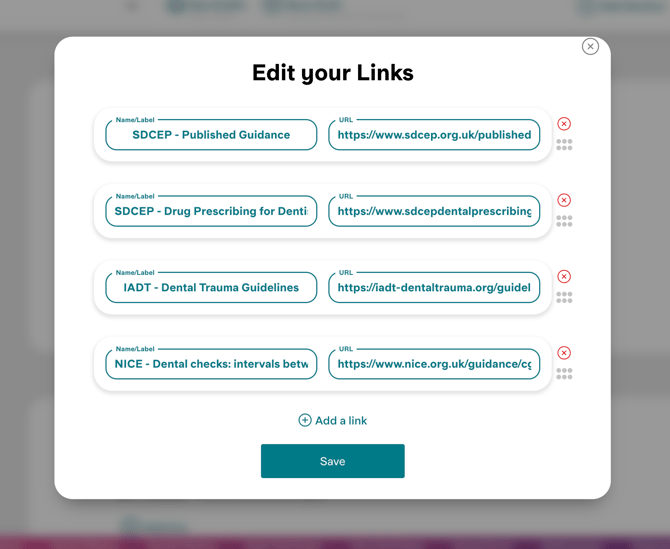
To remove a link press the 'x' button found on the right hand side.
To add a link select 'Add a link', then give this a name and add the URL.

You can also re-order your links by clicking and dragging using the six dots on the right hand side.
When you have finished editing your links, press save.