
Docs supports hyperlinks, which can be useful any time you're sharing a document directly with a patient or colleague and want to point them to an external resource.
A common example is patient information sheets. Rather than listing out a long URL, you can link a phrase like "find out more" so the document stays clean and easy to read.
How to add a hyperlink
There are two ways to add a link in Docs:
-
Paste a URL directly: If you're happy for the full web address to appear in the document, simply paste it in. Docs will recognise it as a link automatically.
-
Use AI instructions to format the link text: If you'd prefer to show link text rather than a bare URL, you can add AI guidance to do this for you. The AI will apply the formatting so only your chosen text is visible, keeping the document tidy.
The example below shows both of these options from the Docs editing view.
You can see that in the second sentence, I have given the AI instructions within rounded brackets on how to format my link and what link text I want to show.
In the third sentence, I have simply pasted a full URL.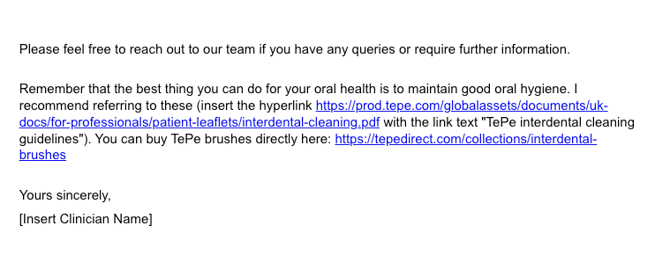
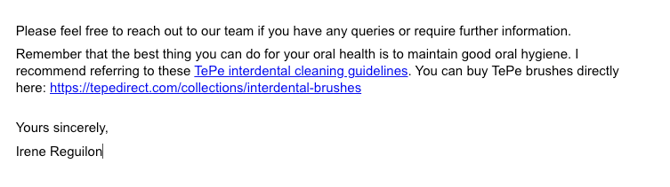
When you generate your Doc, this is how it appears:
A few ideas for when this is useful
-
Linking to a practice website or booking page in a follow-up letter
-
Pointing patients to a relevant NHS or professional body page from an information sheet
-
Including a referral link or resource for a colleague in a clinical letter